


Zscaler Reauthentication Error

Apr 15, 2026
 36
36
In order to resolve the 'Request timed out due to inactivity' error, please follow these steps.
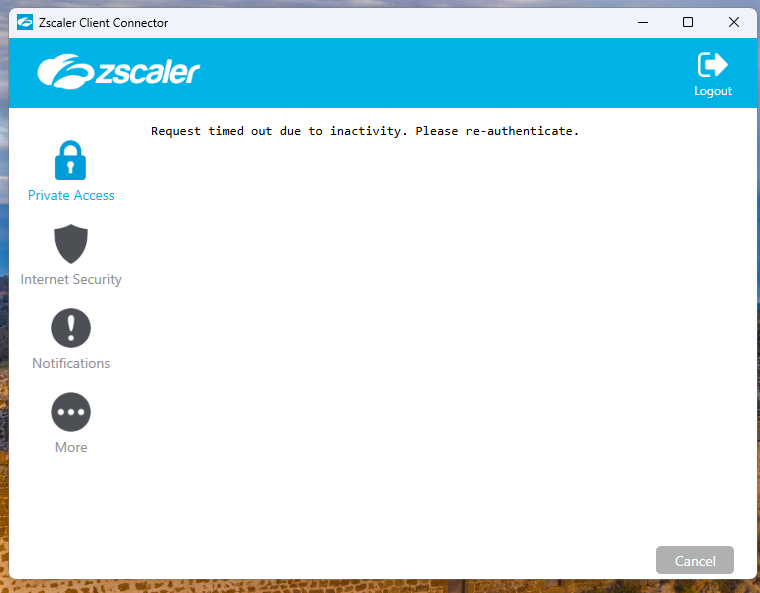
- Press 'Cancel'.
- Re-open Zscaler.
- On the Private Access Tab, click 'Authenticate'.
- Follow the on-screen login prompts, including entering email address, password, and MFA prompt.
These steps will allow you to authenticate properly. Please note that your authentication session will expire after system restarts and will and require re-authentication.

